Ubuntu 16.04 on HP Spectre 13-v000nd
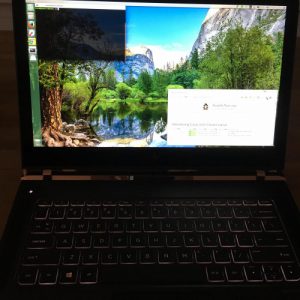
As the HP Spectre 13-v000nd laptop is still fairly new I was surprised that Ubuntu Linux installed without any mayor issues, all hardware seems to work just fine straight from a clean install without any custom modifications to settings, drivers or modules.
The track-pad is fairly sketchy with random movements when you try to click on something, but it has the same behavior on windows (although it is a bit less than under Ubuntu) and has been mentioned in a number of reviews of the HP Spectre as an common issue. If you however only use a ‘touch’ press instead of a full click the issue seems to be gone, so this might be an issue that will be fixed by HP in a firmware upgrade sometime soon.
After a few hours I already got used to ‘touch pressing’ and as I mainly use an Bluetooth mouse the track-pad issue won’t bother me that much.
The following items all work just fine straight after install:
- Sound
- Wireless
- Bluetooth
- USB-C Gbit Ethernet (Adapter from StarTech)
- Brightness Control
- Function Keys
- Standby/sleep
- Keyboard Backlight
The following items work but have some issues:
- Trackpad (random movements at mouse clicks, same behavior in windows)
Battery live is about 5,5 hours while actively using the machine and with screen brightness at about 90%, which is not to bad as my first test on windows was about 6 hours.
Installation Notes:
To install there are just a few steps to follow:
1) Create a Ubuntu 16.04 USB stick.
2) Disable secure boot in the BIOS. (Press F10 while booting)
3) Enable legacy support mode in the BIOS (system -> boot options).
4) Plug the USB stick in the most right USB-C port (The single one with USB icon, other ports won’t work)
5) Boot from the USB stick (Press F9 while booting)
6) Install..
7) Install tlp (apt-get install tlp)
8) Enjoy..
Thank you very much for this report. Have you tested an HDMI and VGA to USB-C adapter with the HP SPECTRE and Ubuntu? For people doing presentations this is a very important fact to buy this notebook. Thank you.
I only have an USB3 – HDMI converter (STARTECH) that I use with the USB-C to USB converter (converter after converter) and that one works just fine.
Thanks Arno for your response. So there is just the question if the Spectre works with a VGA-converter under Linux.
Unfortunately I didn’t succeed in my task to install Ubuntu as dualboot. My hp is the HP Spectre HP 13-v000ng.
1. I created the stick with unetbootin-windows-625 and ubuntu-16.04.1-desktop-amd64. The stick was formated Fat32.
2. I disabled secure boot and enabled legacy support mode in the BIOS.
3. I attached the stick using hp travel dock at the most right usb port. The stick wasn’t recognised as bootable in no way I tried.
4. I used a DVD-player at the same USB-Port, this was recognized. As “live”-version this worked good.
5. When I tried to install, a messge appared, asking: “The partition table format in use on your disks normally requires you to create a separate partition for boot loader code…” I searched this message via google and found, that it hat to do with legacy support enabled and that many users after doing so ended up with a complete reanstallation of their disk. So I decided disable legacy support.
6. Installation first seemed to work, but then it is not possible to enter the password to start Ubuntu. The startscreen seemed to freeze, no pointing device could be seen, no keystrike seemed to work. After several tentatives and also after having tried to repair a frozen startscreen I gave up.
Does someone know, what I could do to install ubuntu without compromising Windows?
Dirk
You need to finish Windows installation at first. To avoid sending data to M$, just do not install any wireless network (nor connect via ETH-adapter). After install of win10 was successful, you can shutdown and reboot as shown above to start ubuntu live usb-stick.
Using gparted in that live-system, you can then resize the ntfs-partition (the big one). I resized it to 50G (having only 256G total). Afterwards, you can install using the installer in the live system.
To have ubuntu -> grub boot primary, e.g. having all choices at boot, I had to deactivate the windows bootmanager entry in efi, using efibootmgr -A -b 0001 (-> see output of efibootmgr to deactive the correct efi entry).
I was even able to re-enable uefi-boot and grub shows up.
Perfect, love it.
One caveat: left shift sometimes seems to need a stronger press on the left hand side of the key….
I did not bother to use legacy boot, I just choose UEFI, with ubuntu boot manager , using Ubuntu 16.04.
My only problem is that the wifi on the Spectre 13.3, only connects at 400Mbps to wifi ? It should be connecting at 867 mbps.
Hi there,
Tried with a Fedora 27 on a HP Spectre 13-v000vf. Worked perfectly during one week and then the PC didnt boot (can’t even go to boot menun). I dont know if the problem come from linux or if my hardware was crappy, but it is good to know for everybody i think 🙂